Daily use
Use the Axiospec mobile app
The Axiospec mobile app lets technicians log calibrations and checks right at the instrument, from a phone, with photos and e-signatures. It uses the same account and data as the web app, so anything you capture on the floor shows up everywhere else.
Get the app and sign in
The native iOS and Android apps are live on the App Store and Google Play. They share one login and one set of data with the Axiospec web app, so there is nothing extra to set up. Whatever your workspace contains on the web is what you see on your phone.
- On iPhone or iPad, open the App Store and search for Axiospec, or use the App Store link on the Axiospec site. On Android, open Google Play and search for Axiospec, or use the Google Play link on the site.
- Install the app and open it.
- Sign in with the same email and password you use for the Axiospec web app. If your workspace uses single sign-on, sign in the same way you do on the web.
- After sign-in you land in your workspace with the same assets, sites, and permissions you already have. Your role (technician, manager, or read-only auditor) carries over, so you only see and do what your role allows.
Find or scan an asset
Every calibration starts from an asset. On the floor, scanning is usually the fastest way to pull up the right instrument without typing a serial number. You can also search your registry by hand when there is no label to scan.
- Scan the QR code on the instrument label to jump straight to that asset.
- Search the asset list by tag, serial number, name, or description when there is no code to scan.
- Open an asset to see its current calibration status (In Tolerance, Due Soon, Overdue, or Out of Service) and its calibration history before you start work.
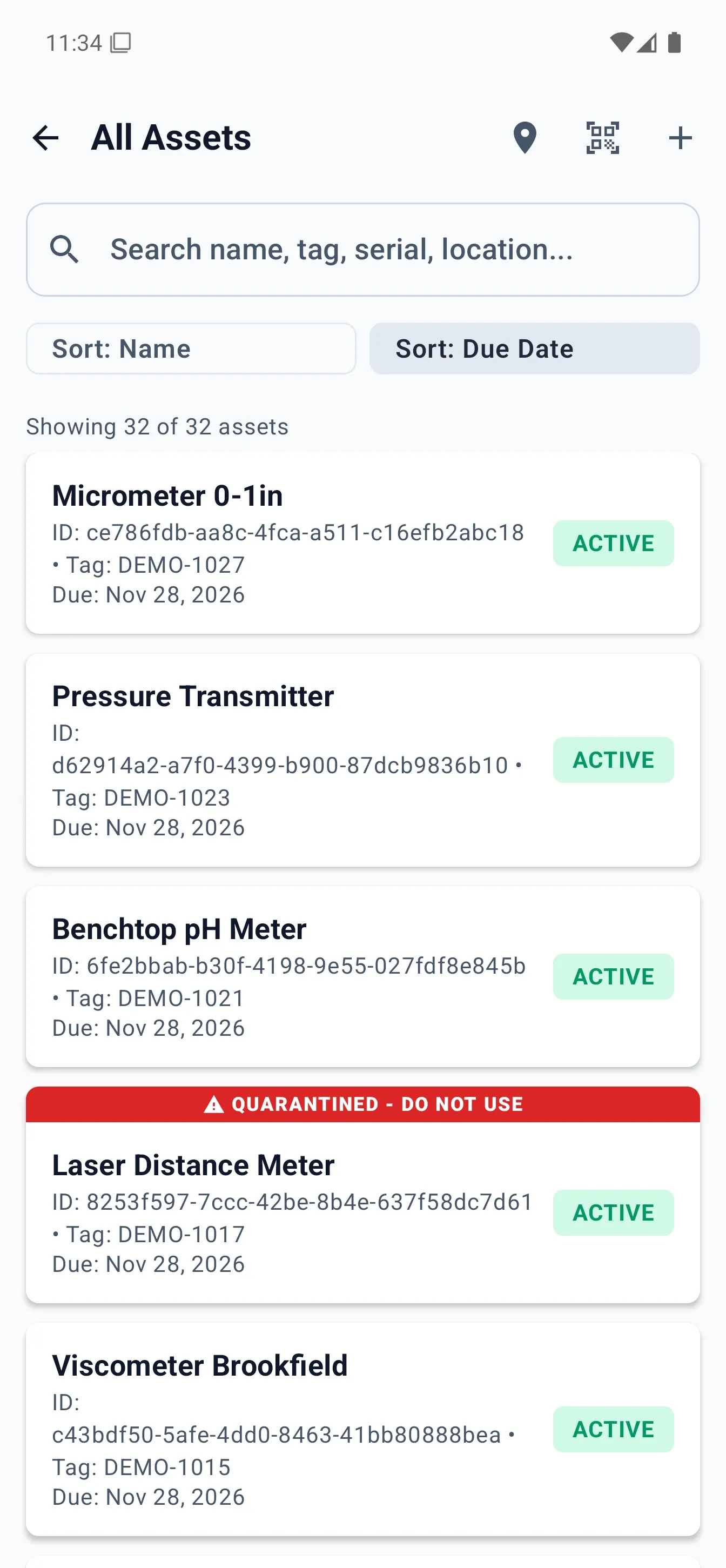
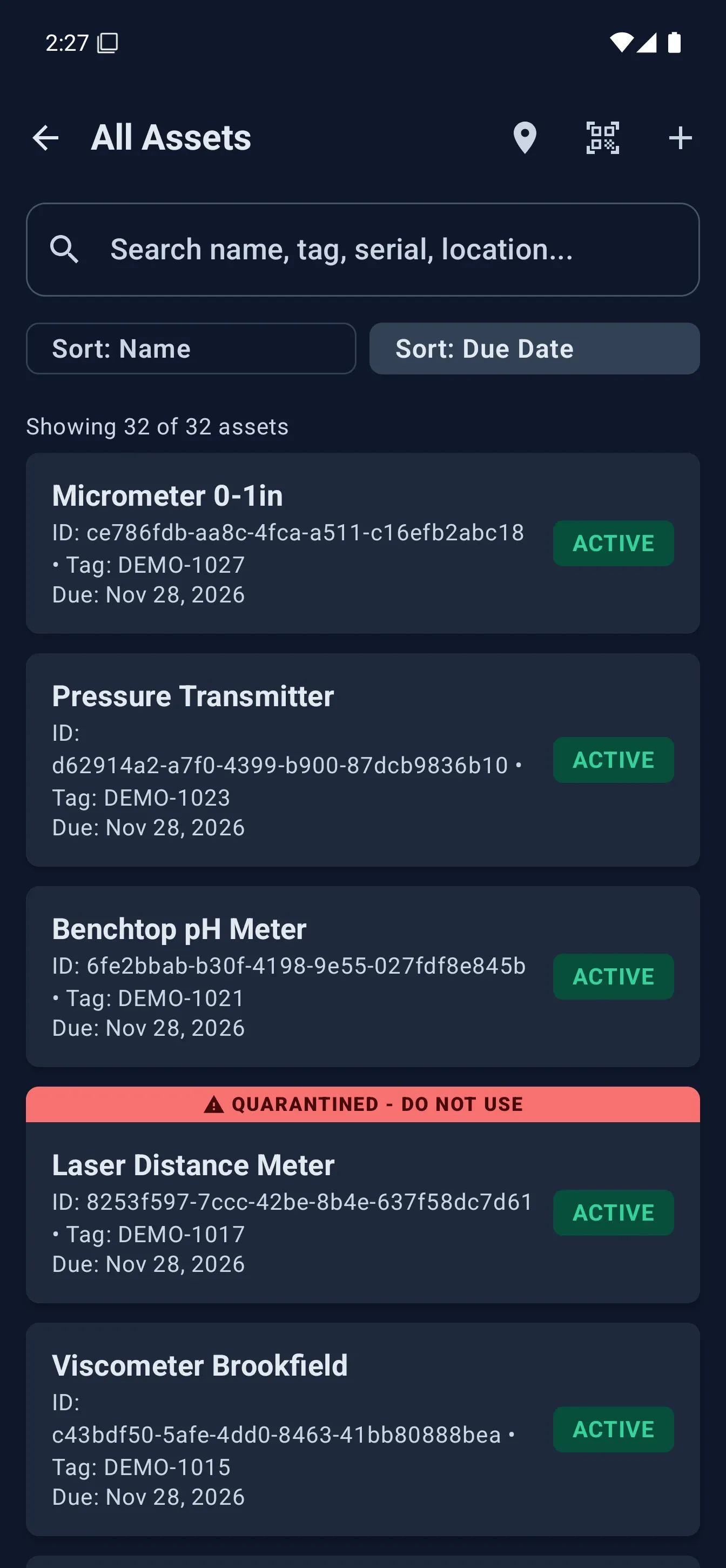
- 1 Tap the scan button to open an instrument by its QR code.
- 2 Search assets by name, tag, serial, or location.
- 3 Sort the list by name or due date.
- 4 Every asset shows its status and next due date at a glance.
Log a calibration or check from your phone
Once you have the right asset open, logging the work is a short form. The goal is to capture the reading, the result, and your e-signature in seconds, then move on to the next instrument.
When you submit, the record is written to the tamper-evident, hash-chained ledger with a timestamp and your e-signature, the same ledger the web app writes to. Changes that need oversight follow the maker-checker approval flow, so a reviewer can approve them later from the web or their own phone.
- From the open asset, start a new calibration entry (for example, Log Calibration).
- Enter the readings. You can type them, or dictate hands-free when gloves or grease make typing impractical.
- Record the result: Pass, Fail, Limited, or Adjusted.
- Attach any photos and confirm the details (see the next section for capturing photos).
- Apply your e-signature and submit. The entry is added to the asset's history and its calibration status updates accordingly.
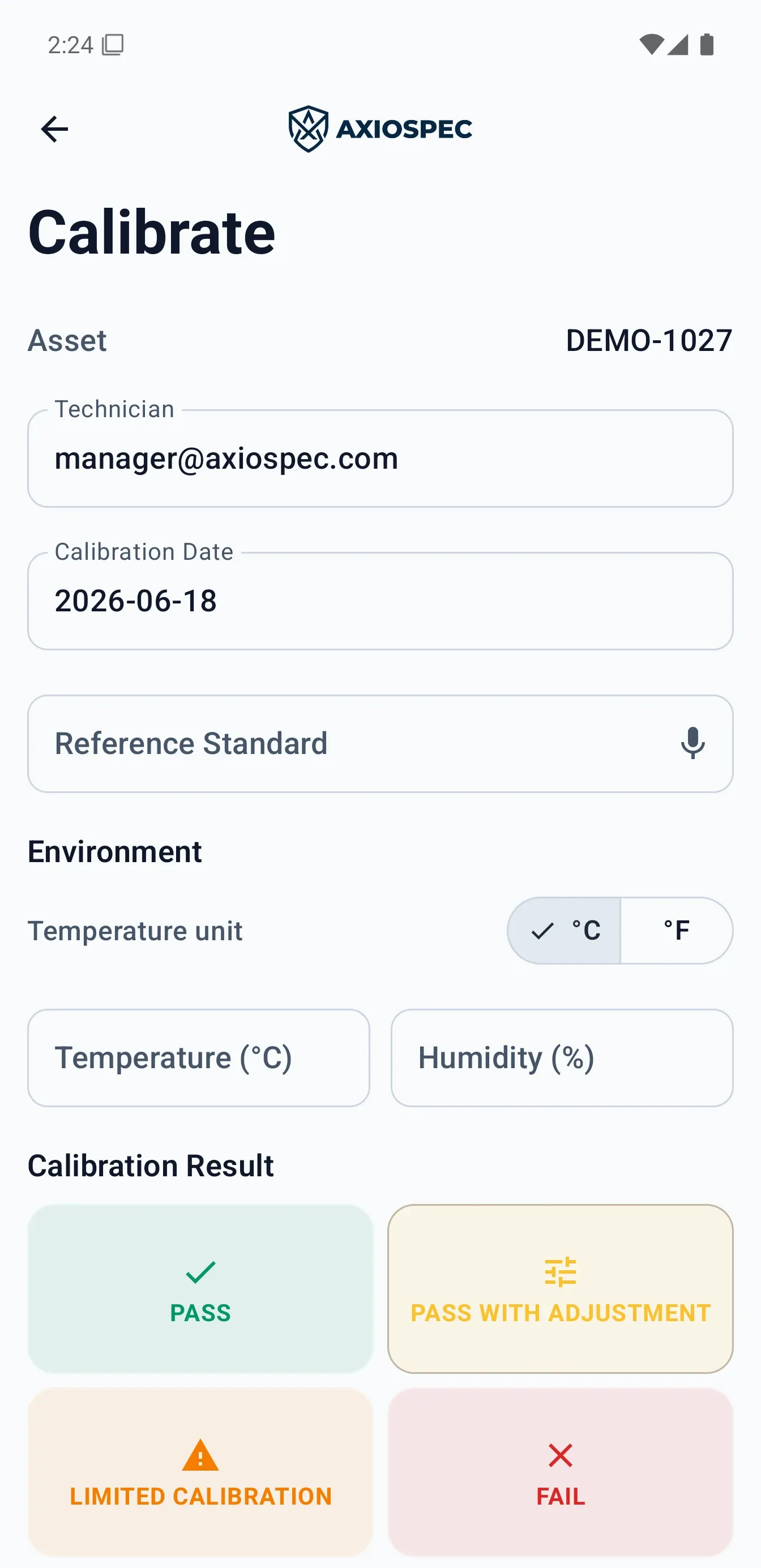
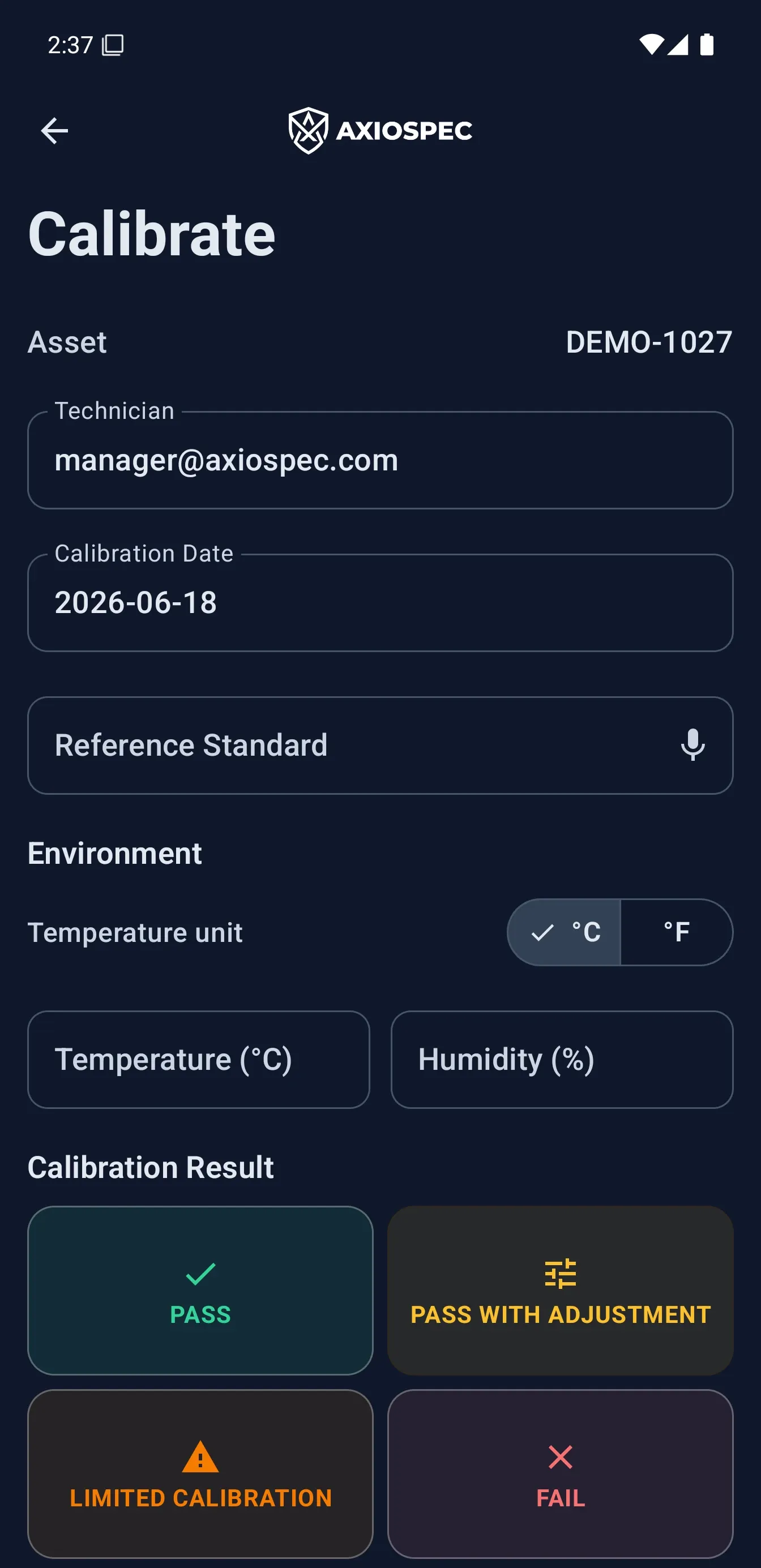
- 1 The instrument you are calibrating, shown by asset tag.
- 2 Record the reference standard used, for traceability.
- 3 Enter the environment: temperature in °C and humidity in %.
- 4 Choose the result: Pass, Pass with adjustment, Limited calibration, or Fail.
Capture photos
Photos give your records context that numbers alone cannot: the instrument condition, the as-found reading on a display, a seal, or a label. Axiospec lets you attach photos to a calibration record as you log it.
Attached photos travel with the record into the ledger and into your audit pack exports, so the visual evidence stays tied to the exact calibration event it documents.
- While logging a calibration, choose to add a photo.
- Take a new photo with your phone camera, or pick an existing image from your library.
- Add as many photos as the work needs (for example, as-found and as-left), then submit the record with your e-signature.
Work offline and sync when you are back online
Shop floors and remote sites often have weak or no signal. The mobile app is built for that. You can keep working without a connection, and your work is not lost.
When you are offline, calibration entries (including their photos and e-signatures) queue locally on your device. As soon as the connection comes back, they sync automatically to your workspace, so floor work is never blocked by spotty WiFi.
- Capture calibrations and checks while fully offline; the app keeps working.
- Entries queue safely on the device until a connection returns.
- Syncing happens automatically when you are back online, no manual upload step.
- Once synced, the records appear on the web app and in exports exactly like any other entry.
Use favorites and remember it is one account
If you calibrate the same instruments often, favorites keep them within easy reach so you do not have to search or scan every time. Mark an asset as a favorite and it stays in a quick-access list on your phone.
Everything you do on mobile is the same account and the same data as the web app. There is no separate mobile database to reconcile. A reading you log on your phone shows up in the Asset Ledger on the web, feeds the same due-date tracking, and is included when a manager exports an audit pack from the Audit Center.
- Mark frequently used instruments as favorites for fast access on the floor.
- Favorited assets stay handy across sessions, so repeat work is one tap away.
- Your mobile entries appear instantly for managers and auditors on the web.
- Approvals can be handled on either device, so a reviewer can approve your work right from their phone.
Put it into practice
Got a gage list? Send it over and we load it for you, usually in a couple of business days. Free on every plan. Then log every calibration to a tamper-evident audit trail and produce records on demand.
Axiospec is a documentation and workflow tool. It helps you keep clean, traceable, audit-ready records; certification depends on your own processes, scope, and assessor.
Take the audit-prep checklist with you
The walk-backward checklist auditors actually use, then four short practical emails. No spam, unsubscribe with one click.
First we email you a link to confirm your address. Nothing else comes until you confirm, and you can unsubscribe from any email after that. See our Privacy Policy.