Getting started
Get your workspace set up
This guide walks you through your first session in Axiospec, from naming your workspace to seeing your first instruments on the dashboard. By the end you will have a working registry and a team ready to log calibrations.
What a workspace is
Your workspace is the home for your whole quality program. It holds your instrument registry, your calibration records, your team, and your sites (each physical facility). Everything you do in Axiospec lives inside one workspace, and the people you invite all share it.
A workspace name is shown across the app and printed on calibration certificates and audit exports, so use the name you want auditors to see. Inside the workspace, a site is a physical facility, and the labs, benches, and rooms within it are locations. A new account starts with one default site that you can rename, and you can add more later under Settings, Sites.
Run the first-run Onboarding wizard
The first time you sign in as an admin, Axiospec opens the Onboarding wizard at /manager/onboarding. It has three steps, and you can use Skip to Dashboard at any time if you would rather explore first.
- Step 1, Workspace Foundation: enter your company or workspace name, name your primary site (your first facility), and set your standard date format and workspace timezone. These control how timestamps appear on calibration records and certificates.
- Set your compliance strictness. Turn on "Require approval for calibration events" if every calibration should be reviewed and approved (maker-checker) before it is committed, and keep "Require electronic signatures" on so users re-authenticate when approving high-risk calibrations.
- Optionally upload a company logo. It appears in your workspace sidebar and on your certificates. Select Continue.
- Step 2, Build Your Team: invite a Technician to perform calibrations and a Manager to approve them, with a first and last name for anyone you invite. This step is optional, so you can choose Skip for now and invite people later.
- Step 3, Bring Your Data: choose how to add your first instruments, then finish. You land on the Compliance Overview dashboard at /manager/dashboard.
Add your first asset, or import in bulk
An asset in Axiospec is a calibrated instrument or gauge that you track, such as a digital multimeter, torque wrench, or caliper. You can add one at a time to try things out, or import your full registry at once.
On the last onboarding step you can add a single asset inline (instrument name, asset tag, optional last calibration date, and a calibration interval) or open the import tool. After onboarding, both paths live on the dashboard.
- Add one asset: on the Instrument Registry section of the dashboard, select Add Asset. Fill in the asset tag, instrument name, manufacturer, model number, and serial number, set the calibration interval, and optionally pick a location and a last calibration date, then select Create Asset.
- Import many at once: select Bulk Import to map and upload your existing tool list from CSV or Excel, including legacy exports such as GAGEpack or GAGEtrak. The import tool maps your columns and validates fields inline.
- Set the calibration interval (for example, 12 months) so Axiospec can schedule the next due date automatically.
- Provide the last calibration date if you know it, and the compliance status and next due date are set from it. Leave it blank and the instrument shows No calibration date until its first calibration is logged.
Understand calibration status and intervals
The calibration interval is how often an instrument must be recalibrated. Axiospec uses the interval plus the last calibration date to compute each asset's next due date, and the dashboard rolls those into a status you can scan at a glance.
Your dashboard leads with clickable status counts that summarize your registry and double as filters. Selecting a count filters the Instrument Registry below it, so you can jump straight to what needs attention.
When you want to plan ahead, the Due Calendar gives you a calendar view of what is due, due soon, and overdue across the whole program, so you can schedule work before anything lapses.
- In Tolerance: the instrument is within its calibration tolerance and on schedule.
- Due Soon: the next calibration date is approaching (within the 30-day window). Plan the work before it lapses.
- Overdue: the instrument is past its calibration due date or in a failed state and needs attention now.
- Out of Service (quarantined): the instrument has been pulled from use and should not be relied on until it is calibrated and returned to service.
- Checked Out: the instrument is signed out to a person through the tool crib, so you can see who has what at a glance and check it back in with one click.
- When a calibration is logged, the result is recorded as Pass, Fail, Limited, or Adjusted, which is what drives the status above.
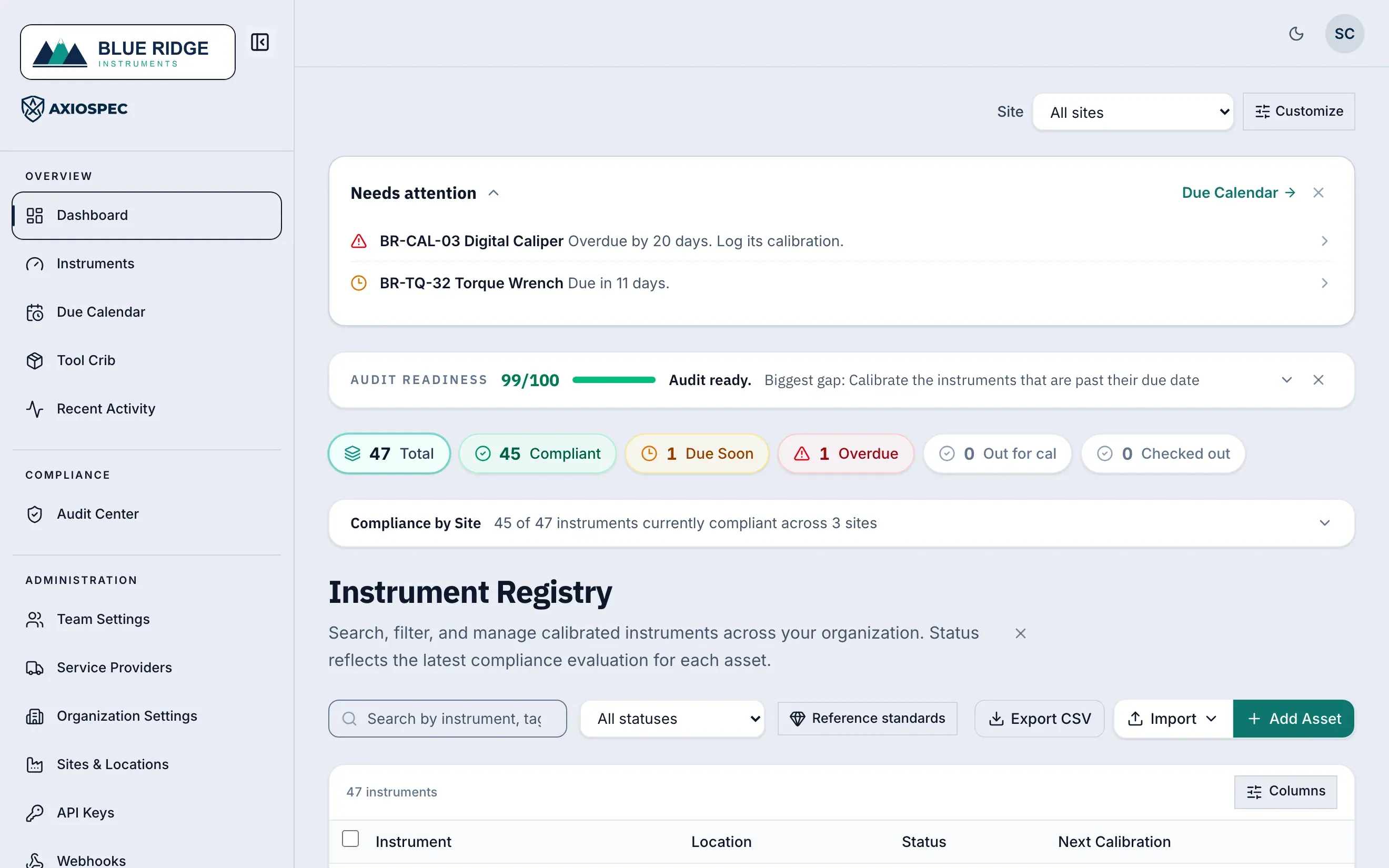
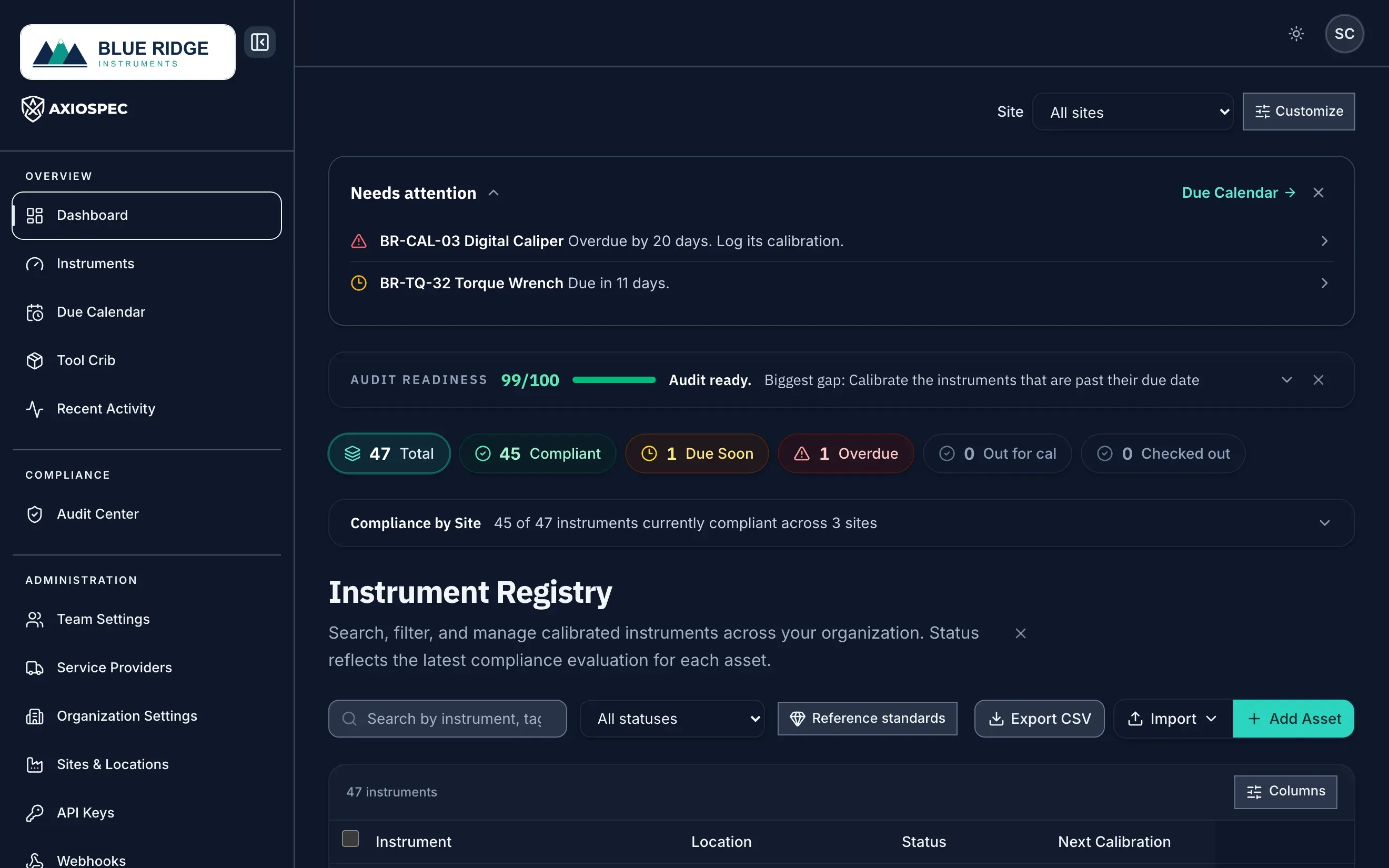
- 1 Primary navigation: move between the Dashboard, Recent Calibrations, Audit Center, and Team Settings.
- 2 Total Assets, Compliant, Due Soon, and Overdue. Each card is also a filter, so select one to see just those instruments.
- 3 Filter the whole dashboard to a single site.
- 4 Export an audit-ready pack for the current view in one click.
Invite your team
If you skipped the team step during onboarding, you can invite teammates anytime from Settings, Team at /manager/settings/team. Inviting people lets technicians log calibrations and managers review and approve them, with each person's name attributed to the records they touch.
Roles shape what each person can do: technicians perform calibrations, managers approve them, and read-only auditors can review records without changing anything. Pricing is per workspace with unlimited users at every tier, so add everyone who needs access.
- Go to Settings, Team.
- Add each teammate's email, first name, and last name, and assign a role (technician, manager, or auditor).
- Send the invitations. Invited users receive an email to set up their own login and join your workspace.
How your records are protected
Calibration records are written to a tamper-evident, hash-chained ledger with timestamps and electronic signatures, and changes that matter run through a maker-checker approval flow. That means the history of any instrument stays traceable and audit-ready.
Axiospec is a documentation and workflow tool. It helps you keep clean, traceable records and export an audit pack in one click, but it does not certify or guarantee an audit outcome. Whether you pass depends on your own processes, your scope, and your assessor.
Next steps
With your workspace set up and your first instruments in the registry, you are ready to load the rest of your data and start capturing calibrations.
- Bringing data from another system? See "Import your registry" to map and validate a CSV, Excel, or legacy export.
- Ready to record work? See "Log a calibration" to capture a reading, attach a photo, and e-sign a record.
Put it into practice
Got a gage list? Send it over and we load it for you, usually in a couple of business days. Free on every plan. Then log every calibration to a tamper-evident audit trail and produce records on demand.
Axiospec is a documentation and workflow tool. It helps you keep clean, traceable, audit-ready records; certification depends on your own processes, scope, and assessor.
Take the audit-prep checklist with you
The walk-backward checklist auditors actually use, then four short practical emails. No spam, unsubscribe with one click.
First we email you a link to confirm your address. Nothing else comes until you confirm, and you can unsubscribe from any email after that. See our Privacy Policy.