Daily use
Log a calibration
Logging a calibration is the core daily task in Axiospec. This guide walks you through finding the instrument, recording the result and readings, attaching the certificate, e-signing, and letting the status and next-due date update on their own.
Find the instrument
Every calibration is logged against a single instrument record, so the first step is opening the right one. Go to the Asset Ledger at /manager/asset-ledger and search or filter by asset tag, serial number, manufacturer, or location, then open the record to land on its asset detail page.
If you are at the bench, scanning the printed QR label on the instrument is faster. Each label encodes a deep link that opens the same instrument record, so a phone-camera scan takes you straight to the asset detail page (and into the Axiospec mobile app when it is installed).
- Asset Ledger: open /manager/asset-ledger, find the instrument, and open its record.
- QR scan: scan the device label to jump directly to the instrument record.
- From the dashboard, an instrument flagged Due Soon or Overdue links straight to its record.
Open the Log Calibration sheet
On the asset detail page, select Log Calibration in the header. A side sheet titled Log Calibration opens with the entry form. The advanced metrology fields are optional, so a simple pass can be a few fields, while a full metrology record can capture readings and environment.
When the instrument has a viewable standard operating procedure linked to its active calibration plan, a View SOP button appears at the top of the sheet so you can open the procedure in a new tab before you start.
- Calibration Date defaults to today; change it if you are back-dating bench work.
- Reference Standard Used records traceability; type the standard or pick from the suggested list (for example, Gage Block Set #4 or a NIST-traceable weight set).
- Temperature and Humidity capture the environment; the temperature unit toggle lets you enter Celsius or Fahrenheit.
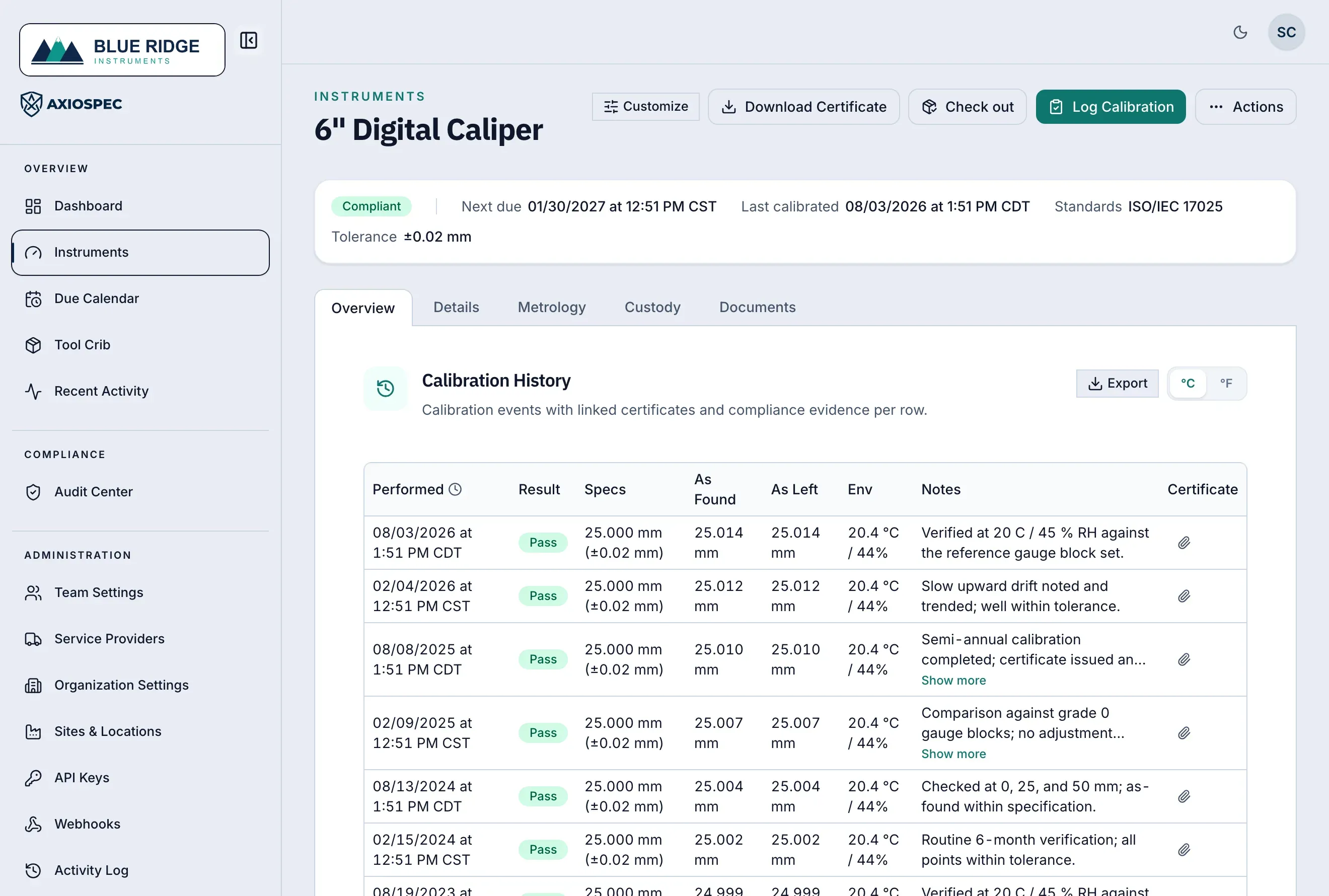
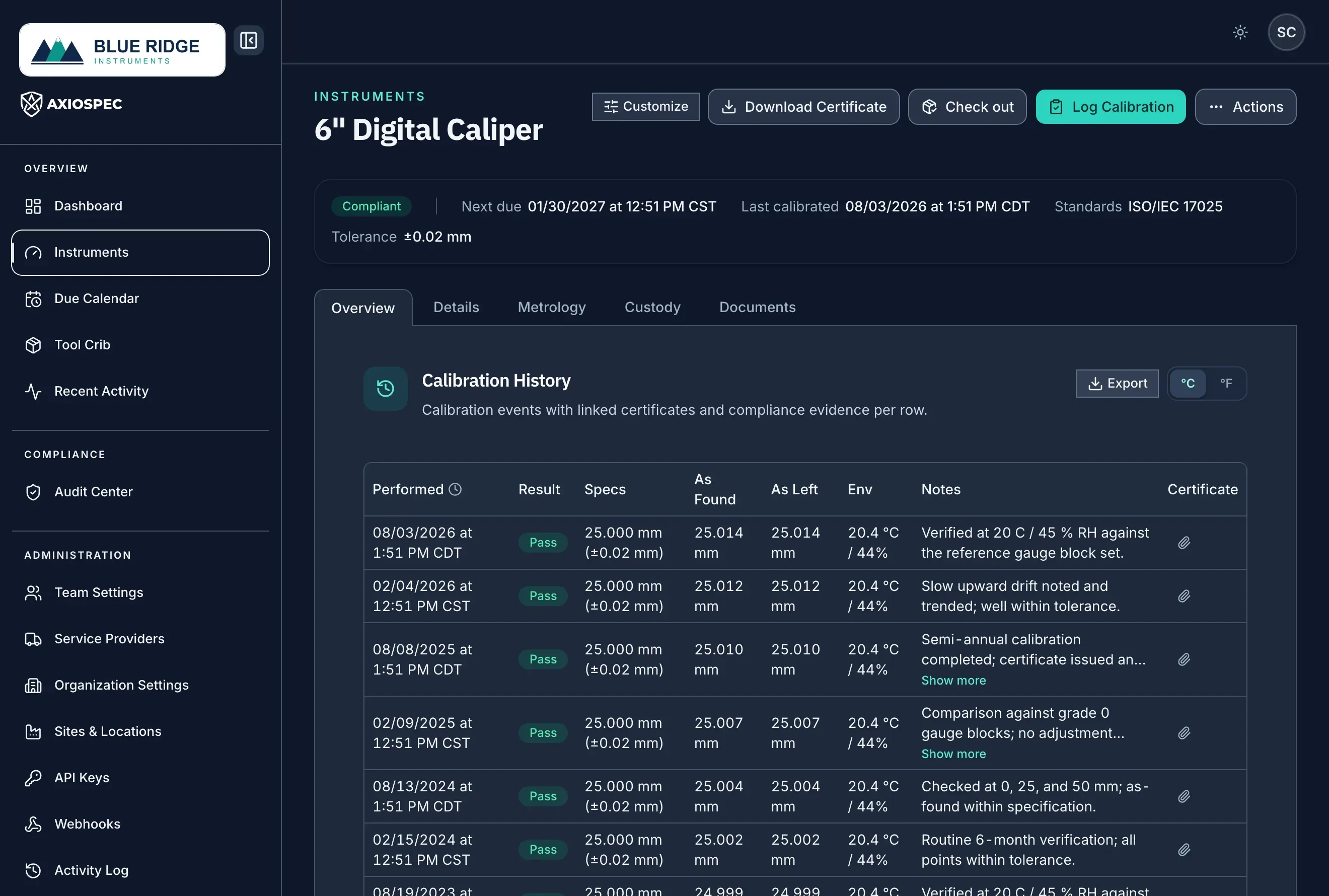
- 1 Open the Log Calibration sheet from the instrument's page.
- 2 Each event records a result: Pass, Pass with adjustment, Limited, or Fail.
- 3 Capture as-found and as-left readings against the tolerance spec.
- 4 Attach the calibration certificate or a photo to the record.
- 5 The next due date and status update automatically once you submit.
Record the result and readings
Set the Result for this calibration. The options are Pass, Pass with Adjustment (an adjusted instrument that now passes), Limited Calibration (a restricted or partial pass), Fail, and Damaged. Choose Limited Calibration only when the instrument is usable within stated limits, and use Pass with Adjustment when you brought a drifting instrument back into tolerance.
In the Readings section, enter the Nominal, Tolerance, As Found, and As Left values where they apply. As Found captures the instrument's state before any adjustment; As Left captures it afterward. These build the as-found and as-left record that auditors look for.
Axiospec helps catch mistakes: if an As Found or As Left reading falls outside nominal plus or minus tolerance, the Result is automatically set to Fail and the sheet tells you why. Limited Calibration requires you to fill in Restriction Notes (for example, the valid range) before you can submit.
- Pass: the instrument met its tolerance with no adjustment.
- Pass with Adjustment: it was adjusted and now meets tolerance (As Found and As Left are highlighted).
- Limited Calibration: usable within limits; Restriction Notes are required.
- Fail or Damaged: the result quarantines the instrument (status Out of Service) pending review.
Attach the certificate or evidence photo
Under Certificate & Evidence Photos, click to upload or drag and drop your files. PDF and image files are supported, so you can attach an external calibration certificate or a photo of the bench setup, display reading, or seal.
The first file you add is treated as the primary certificate (it is tagged Certificate in the list), and any additional files are kept as supporting evidence. You can add several photos and remove any before you submit. Files attach to this specific calibration event, so the certificate stays linked to the exact result it documents.
- First file = primary certificate; additional files = evidence photos.
- Drag and drop or click the upload area to browse.
- You can also attach a certificate later from the calibration history row using the paperclip action.
E-sign and submit
When you submit, Axiospec writes the event to a tamper-evident, hash-chained ledger with a timestamp, so the record cannot be silently altered after the fact. If your workspace policy or the specific asset requires it, an electronic signature prompt appears and you re-authenticate to sign the submission. A signed event shows a shield indicator in the calibration history.
The submit button reflects what happens next. When supervisor approval is required for the asset, the button reads Submit for Review and the event is queued for a reviewer. When approval is not required, it reads Record Calibration and the result takes effect immediately. Either way, the event is captured in the ledger first.
- Submit for Review: the asset requires approval, so the result waits in the queue.
- Record Calibration: approval is not required, so the result is recorded at once.
- If the instrument is quarantined and your result passes, check the option to return it to service (this clears quarantine once the result is accepted).
Approval and automatic status updates
Calibrations that need a sign-off route through a maker-checker flow. Submissions land in the review queue at /manager/approvals, where a different manager or administrator approves or rejects them. You cannot approve or reject a calibration you submitted yourself; another reviewer must handle it. A rejection includes a reason that stays in the audit trail, and the result is kept out of the accepted compliance record.
Once a calibration is recorded (or approved, when review is required), the instrument's compliance status and next-due date update automatically based on the result and the calibration interval. A passing result moves the asset toward In Tolerance and recalculates Calibration Due, which surfaces as Due Soon as the date approaches and Overdue once it passes. A Fail or Damaged result quarantines the asset as Out of Service until it is reviewed. You do not edit these dates by hand.
- In Tolerance: the instrument is within its calibration interval.
- Due Soon: the next calibration date is approaching.
- Overdue: the calibration interval has lapsed.
- Out of Service (quarantined): set by a Fail or Damaged result, pending review.
Put it into practice
Got a gage list? Send it over and we load it for you, usually in a couple of business days. Free on every plan. Then log every calibration to a tamper-evident audit trail and produce records on demand.
Axiospec is a documentation and workflow tool. It helps you keep clean, traceable, audit-ready records; certification depends on your own processes, scope, and assessor.
Take the audit-prep checklist with you
The walk-backward checklist auditors actually use, then four short practical emails. No spam, unsubscribe with one click.
First we email you a link to confirm your address. Nothing else comes until you confirm, and you can unsubscribe from any email after that. See our Privacy Policy.